Best Apps for Time Management: 10 Picks for 2026
Compare the best apps for time management in 2026, with honest pros, cons, and real use cases for freelancers, teams, and busy calendars.
What if the problem isn't that you haven't found the right app, but that you're asking one app to fix four different kinds of time loss? A chaotic calendar, a scattered task list, untracked billable hours, and a phone that keeps pulling you out of focus are not the same problem. Treating them as one problem is why so many people install a promising tool, use it for ten days, and abandon it.
Read this list as a diagnostic, not a popularity ranking. Find the failure mode that sounds like your week, then pick the app built for that failure mode. If your work is split across chat, files, and tasks, you need a workspace. If your tasks are captured but never scheduled, you need auto-scheduling or daily planning. If you can't say where last week went, you need time tracking. If you know what to do but can't stay on it, you need a focus tool, not another list.
That distinction matters because coordination itself eats the day. In 2024, Microsoft reported users spent 60% of their Microsoft 365 time on emails, chats, and meetings, while 40% went to creation applications, according to a summary of Microsoft 365 time use. The best apps for time management below each cover who they suit, what they do well, and where they'll frustrate you. If you're also weighing broader systems, compare these picks against project tracking options for location-independent founders before you commit. Pick one problem first. Stack tools later only if a real gap remains.
1. Tuff
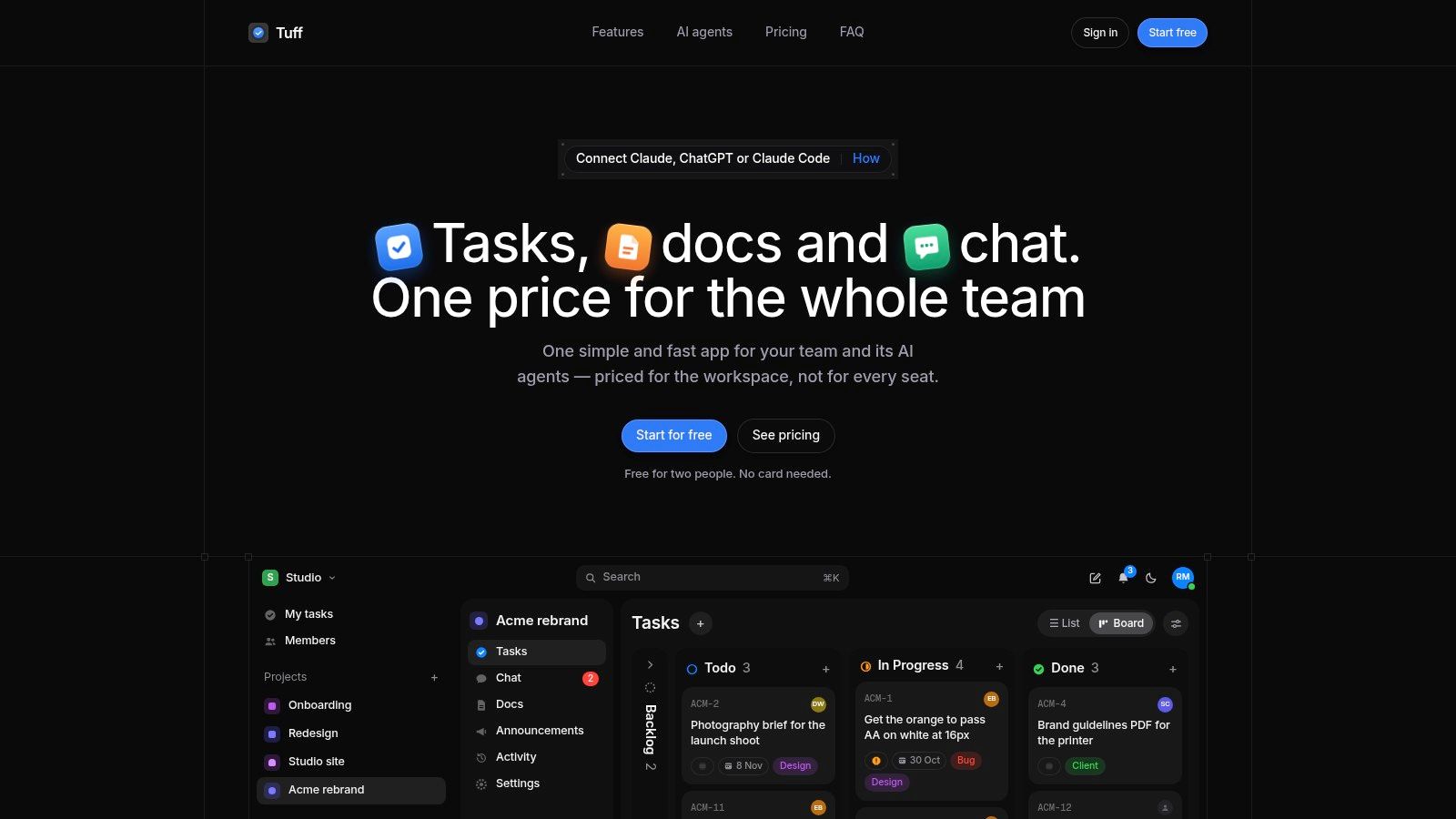
Pick this when your time loss comes from fragmentation, not from forgetting individual tasks. Say an agency runs a client launch across chat threads, a task board, shared docs, and a separate timer. Every status check means hunting through four tools. Here, each project holds its tasks, chat, docs, files, and announcements together, time is logged on the work itself, and team statistics show how that time distributes across projects. My Tasks collects everything assigned to you across projects, soonest first, so your morning starts from one queue.
That integrated model matches how work already happens on phones. A 2025 Clutch survey of 500 full-time employees found 86% relied on mobile apps to perform work and 34% used apps for scheduling or time tracking, while 89% felt an urge to check work apps outside working hours. One visible workspace helps coordination, but you still need discipline about notifications and after-hours checking.
Pricing and Guardrails Worth Checking
Pricing is the differentiator. It's workspace-based, not per seat. The free Duo plan covers 2 people with 250 MB. Paid plans run $25 a month for up to 10 people, $99 for up to 100, and $299 for unlimited people, in US dollars before tax, with storage rising to 1 TB. For a 50-person team, we calculate a $12,156 annual saving versus Slack Pro plus Asana Starter. That's our comparison, not independent validation.
- Chat to task: Turn a message into trackable work and mention tasks inside conversations.
- AI agents with attribution: Paid plans connect ChatGPT, Claude, Claude Code, and other MCP-compatible agents. Agents read and write as the authorizing user, can't delete content, and their actions appear in the activity feed.
- Migration and access: Slack imports preserve threads and files. It works in a mobile browser, installs to a home screen, and supports keyboard-first navigation.
- Stated safeguards: Encrypted traffic, database-level workspace separation, continuous backups, and optional two-factor authentication. We don't sell customer data or use it to train AI.
The limits are real. People and storage are capped by plan, the free plan excludes AI agents, and there's no independent testimonial evidence here to verify the advertised savings. Solo users who just need a personal planner will find this heavier than necessary. Teams tired of paying per seat for scattered tools should start at the official workspace site and test it on one live client project.
2. Motion
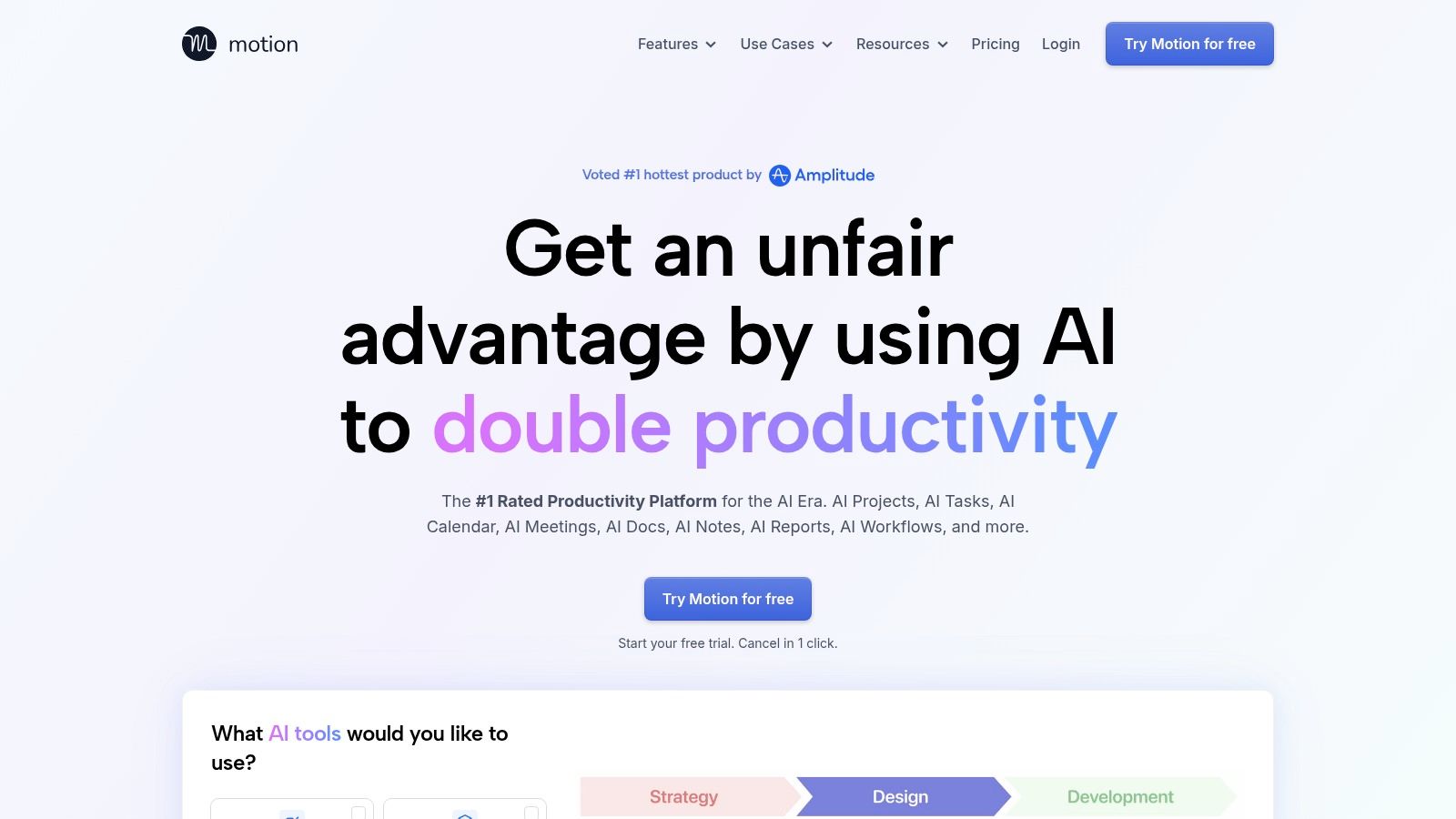
Choose Motion when your task list is fine but your calendar keeps lying to you. You write down twelve priorities, meetings expand, and by Wednesday the plan bears no relation to reality. Its AI scheduling places tasks around deadlines and availability, then reshuffles when priorities or meetings change. You're not manually dragging blocks every time a call moves.
That calendar-first approach fits entrenched habits. Consumer data summarized in a digital calendar market summary based on 1,000 participants found 70% of surveyed adults relied primarily on digital calendars, with 46.7% accessing them through mobile calendar applications. If the calendar is where you already live, putting task execution inside it removes a translation step.
Beyond auto-scheduling, you get projects, tasks, documents, notes, and meeting management in one place, across web, desktop, and mobile. Business tiers add time tracking, capacity planning, and dashboards, which helps managers see overload before it becomes missed deadlines. If you're weighing automation carefully, this guide on using AI to plan and manage projects is a useful companion before you hand your schedule to an algorithm.
The trade-off is control. Automated schedules need review, because the app can't know that a nominally low-priority task is politically urgent or that you do your best writing before standup. It's also a paid product, and the business features cost more than the individual plan. I recommend it for managers and operators whose days re-plan themselves. I don't recommend it if you prefer deciding each block yourself. You'll spend your time fighting the scheduler instead of using it.
3. Sunsama
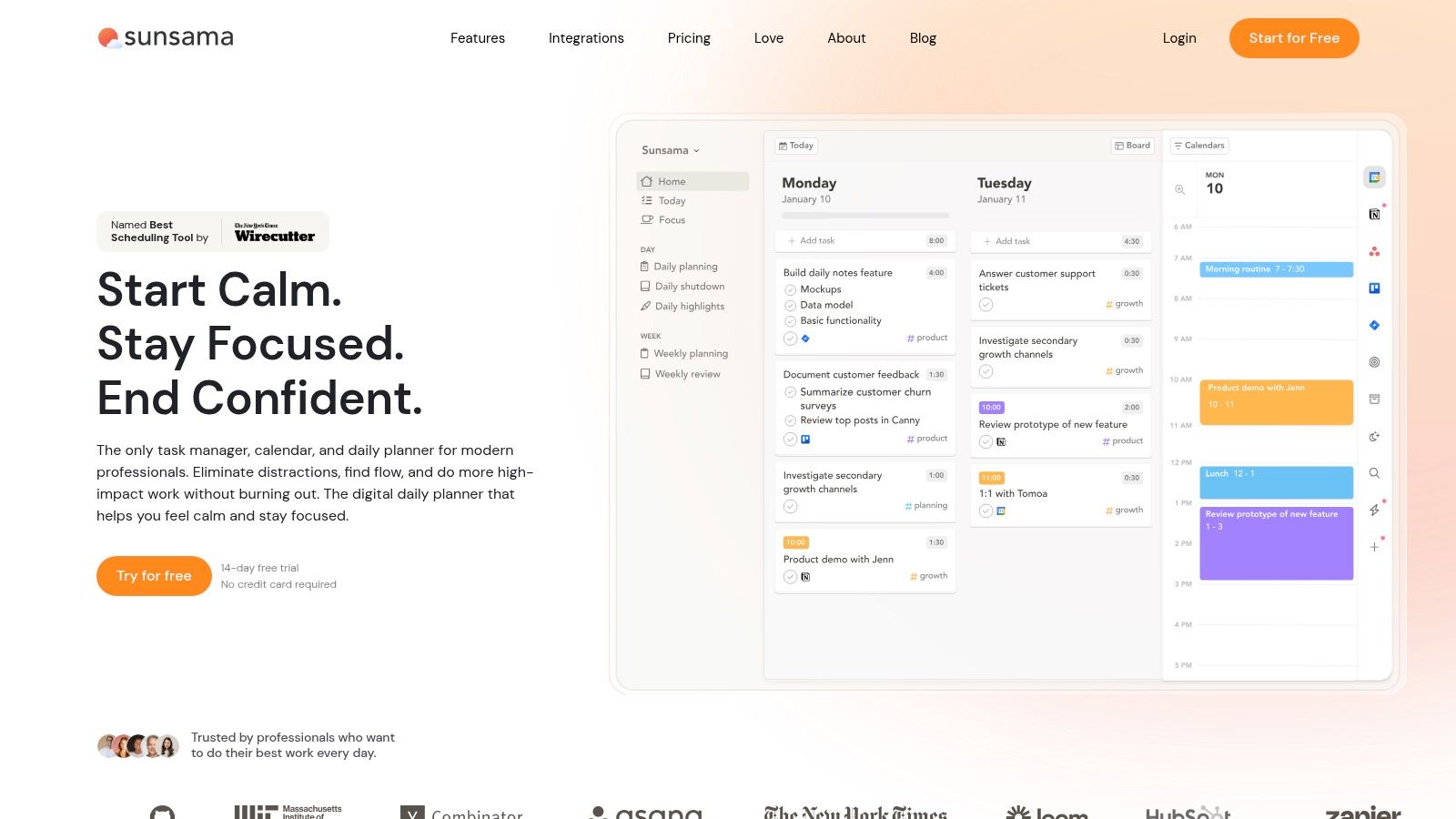
Does your day regularly fill up before you've checked how many hours you have? Sunsama is built for deliberate daily planning. Its guided morning routine asks you to review incoming work, choose what's realistic, estimate task durations, and timebox tasks on your calendar. Weekly planning gives the same process a longer horizon. The trade-off is more planning upfront in exchange for a clearer limit on what fits.
A 2025 randomized controlled trial published in JMIR mHealth found that a chatbot-integrated intervention improved university students' time-management behavior and reduced perceived stress. The trial suggests structured prompts can support planning habits, but it did not test Sunsama or daily planners.
Sunsama pulls tasks from tools including Asana, ClickUp, Jira, Notion, Slack, and Todoist, so you can plan a day that spans several systems. It's a paid product, so budget for a subscription. Project files, discussion, and team reporting remain in the tools you already use; Sunsama is for planning your day, not managing a team's work end to end.
The guided process also takes time. If you need a quick brain dump, reviewing and estimating each task may feel like overhead.
If your days fail because you plan fourteen hours of work into eight, a daily shutdown and startup ritual will help more than a smarter inbox.
Choose Sunsama for calm, deliberate daily planning. Skip it if you need a shared source of truth for projects, or if you'd rather capture tasks quickly and decide what to do later.
4. Todoist
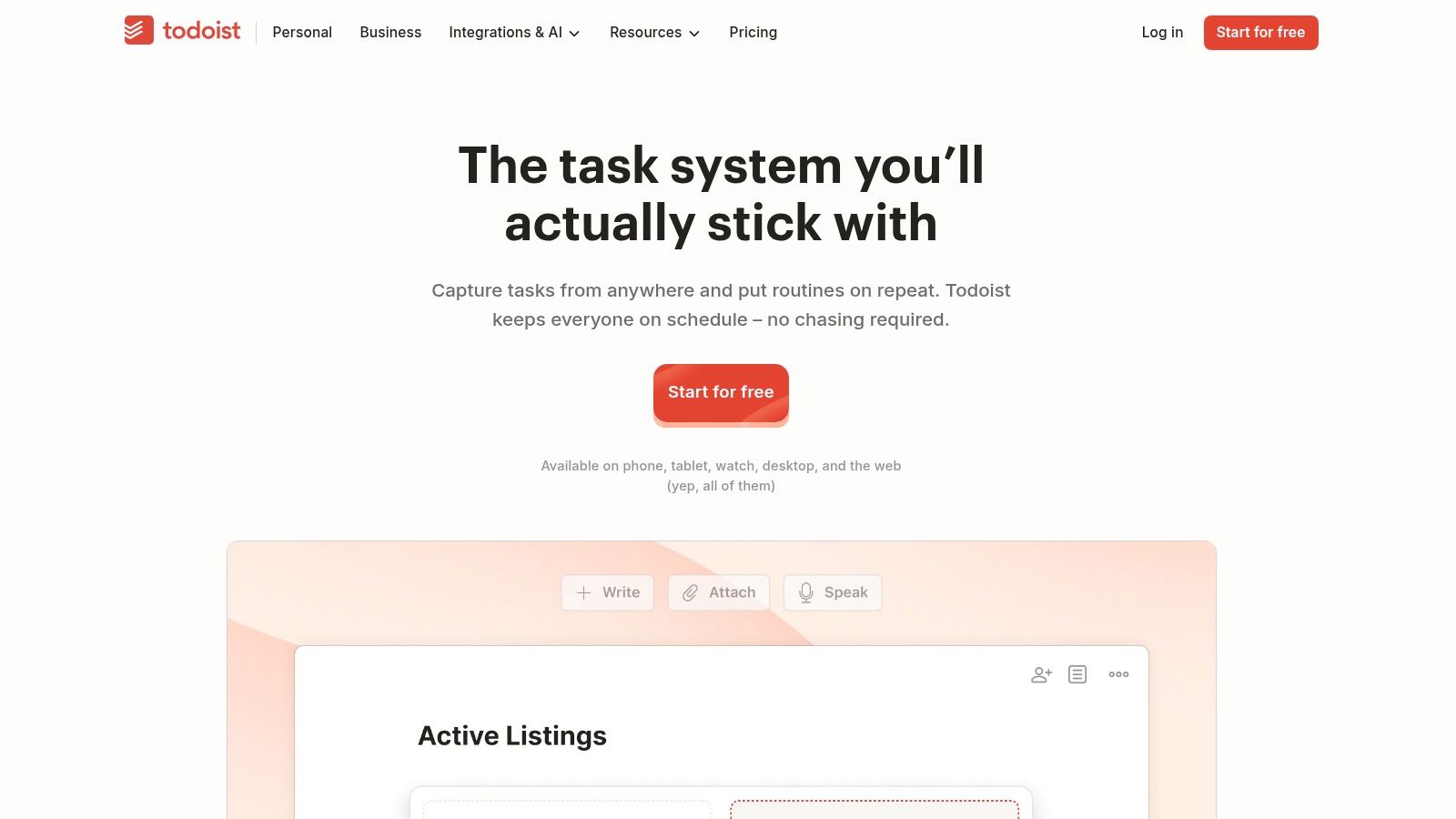
When tasks live in your head, in email flags, and on sticky notes, start with capture speed. Todoist lets you type a task in natural language, assign it to a project, set a priority and reminder, and move on. Lists, boards, recurring tasks, and filters keep personal and small work lists tidy without a setup project of their own.
Don't expect a clean app alone to replace your whole planning system. Academic research available through the ACM Digital Library on task management app design found users commonly combine digital and non-digital tools, and observed adoption didn't match researchers' initial expectations. That's a fair warning for any list app. Measure whether work gets captured and completed there, not whether the interface feels satisfying on day one.
Where It Fits and Where It Stops
- Fast personal capture: Quick entry, priorities, reminders, and recurring tasks handle routines like weekly reports or invoice follow-ups.
- Light planning: Paid plans add a calendar layout and task-duration planning, useful when a due date alone isn't enough.
- Small team sharing: The Business plan supports shared team projects, but detailed discussion still tends to migrate to chat.
The free plan limits projects and filters, which power users hit quickly. Per-user paid pricing also adds up as a team grows. There's also no built-in home here for project documents or serious time logging, so teams end up bolting on other tools and recreating the fragmentation they wanted to escape.
I recommend it for individuals and very small teams whose core problem is forgetting tasks, not coordinating complex delivery. If your work needs threaded project discussion, files, and hours attached to the same record, you'll outgrow it.
5. TickTick
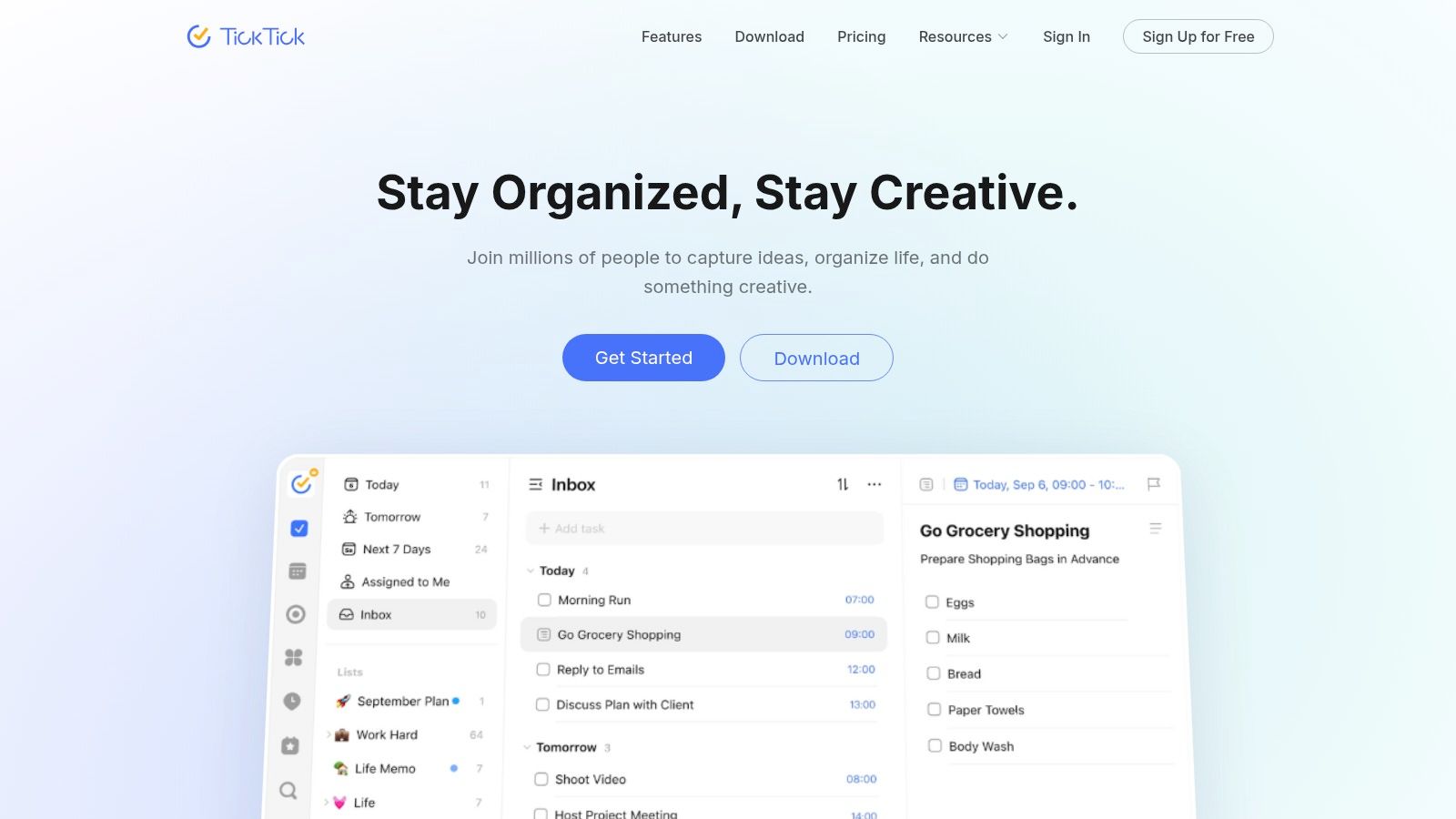
TickTick is for the person who wants a task list, a calendar view, habits, and a focus timer without assembling four separate apps. Tasks support subtasks, reminders, and recurrence. Calendar and timeline views show whether your commitments fit. Habit tracking, task statistics, a built-in focus timer, and an Eisenhower Matrix view push it beyond a plain checklist.
That breadth helps students, freelancers, and solo operators who manage recurring routines alongside project work. Say you're balancing client deadlines with a daily study block and a weekly admin routine. Keeping the habit streak and the deadline in one view reduces the chance you'll plan one and forget the other.
Usability determines whether that breadth assists or overwhelms. A 2025 study of 415 Australian adults in Health Behavior research found awareness and perceived usefulness of screen-time features varied by age and gender, while technical difficulty and poor usability reduced effective adoption. The lesson applies directly. More panels only save time if you can use them without friction.
There's a free version to test that question. Premium adds capacity, extra views, and customization at a listed annual price. But this isn't a workspace for complex team coordination. You won't manage shared project files, threaded team discussion, and client delivery here with the same depth as a dedicated project tool.
My judgment: choose it if you're an individual who likes all personal planning mechanics in one app and will use the matrix and habit views. Choose a simpler list if extra tools become another system to maintain. Unused features aren't value. They're clutter you pay to look at.
6. Reclaim.ai
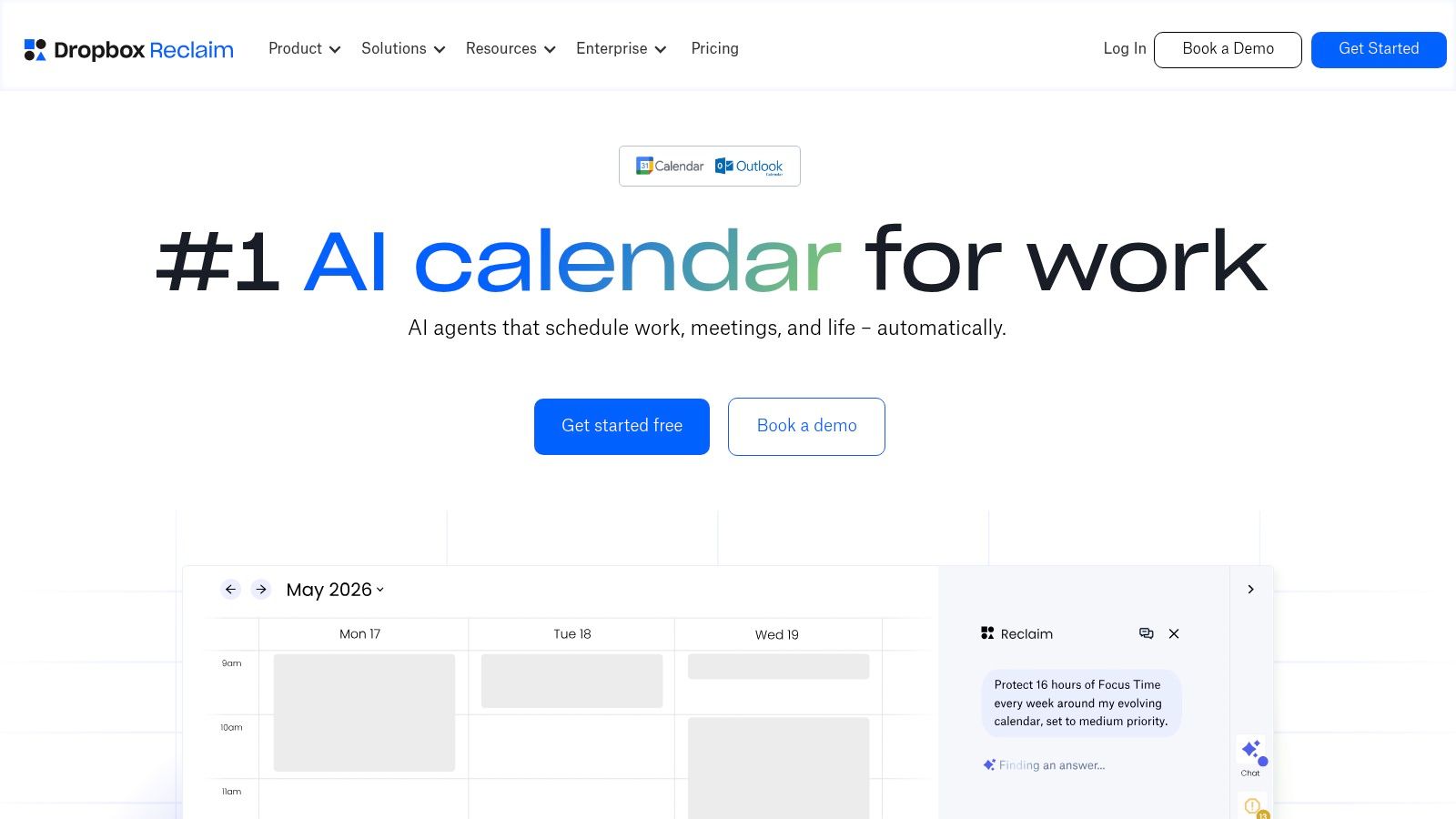
Your calendar is public territory and your focus time keeps losing. That's the exact problem Reclaim.ai attacks. It automatically schedules focus blocks, recurring habits, and task time around existing events, defends those blocks as meetings arrive, and reschedules them when conflicts win. Colleagues see you're busy before they book over your only writing slot.
It also handles smart meeting scheduling, calendar syncing, and availability links, so coordination doesn't bounce back into email threads. Integrations include Google Tasks, Slack, and Zoom, with Asana, ClickUp, Jira, and Todoist available on paid plans. That means a task defined in your project tool can become defended calendar time without retyping it. If you're comparing scheduling approaches more broadly, this overview of free scheduling tools for project work helps frame what you need.
The free Lite plan gives individuals a low-risk test. Run it for two meeting-heavy weeks and watch one metric: how many focus blocks survive to Friday. That's a more honest evaluation than admiring the setup screens.
Practical rule: If focus time isn't visible on the shared calendar, your team will treat it as free time, no matter what your task list says.
The limits follow from its focus. It optimizes calendars rather than serving as a general project hub, so tasks, docs, and files still live elsewhere. Team features and integrations vary by plan. And automatic placement won't suit people who want to position every block by hand. Pick it when meetings are the thief. Don't pick it as your only system for managing team delivery.
7. Akiflow
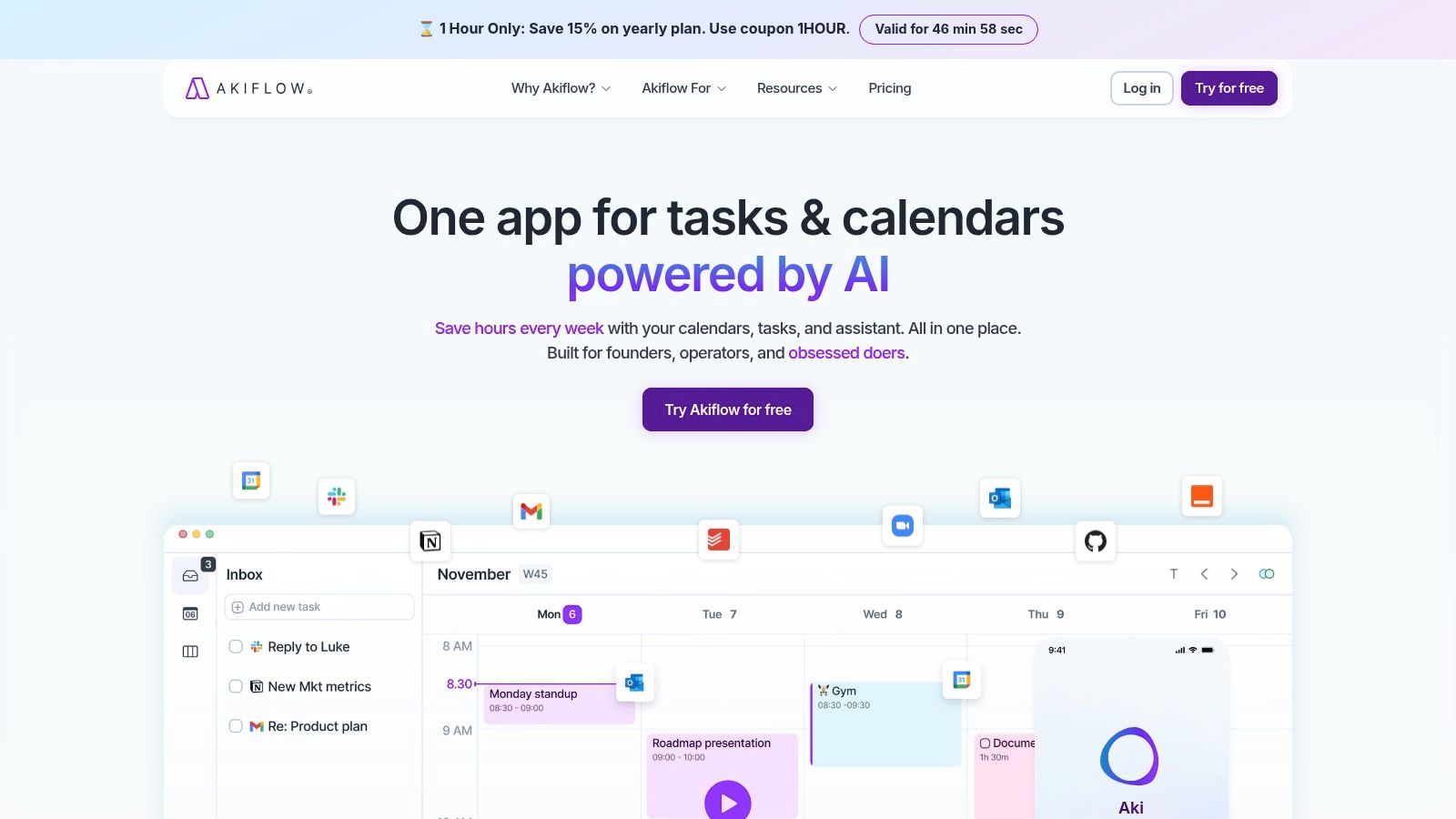
Akiflow takes the opposite stance from auto-schedulers. It collects tasks from connected services into a Universal Inbox, then you decide what gets scheduled and when, dragging work directly onto your calendar. You stay in control of placement. The app's job is consolidation and visibility, not algorithmic decision-making.
That suits senior individual contributors and founders whose work arrives from five directions. A support escalation, a board task, a calendar invite, and a personal reminder can land in one inbox each morning. You triage once, time-block the chosen work next to fixed commitments, and stop re-reading the same requests in four apps throughout the day.
Speed features support that daily triage habit. Keyboard shortcuts handle navigation and planning without constant mouse work. Mobile apps and browser access keep the inbox reachable between meetings. The Pro tier lists an AI assistant and a hosted MCP server as included.
The Honest Cost
There's no free-forever plan, so you're paying for consolidation you could partially replicate with discipline and a single task app. Manual time blocking also demands regular maintenance. Skip your morning triage for three days and the inbox becomes the same overwhelming pile you had before, just better designed.
I recommend it if you already time-block, trust your own scheduling judgment, and mainly suffer from scattered inputs. I don't recommend it if you want the app to decide for you, or if a basic task list would cover your needs. Paying a subscription to manually plan a handful of daily to-dos is hard to justify. Paying to unify five work streams into one defensible calendar is a different calculation.
8. Clockify
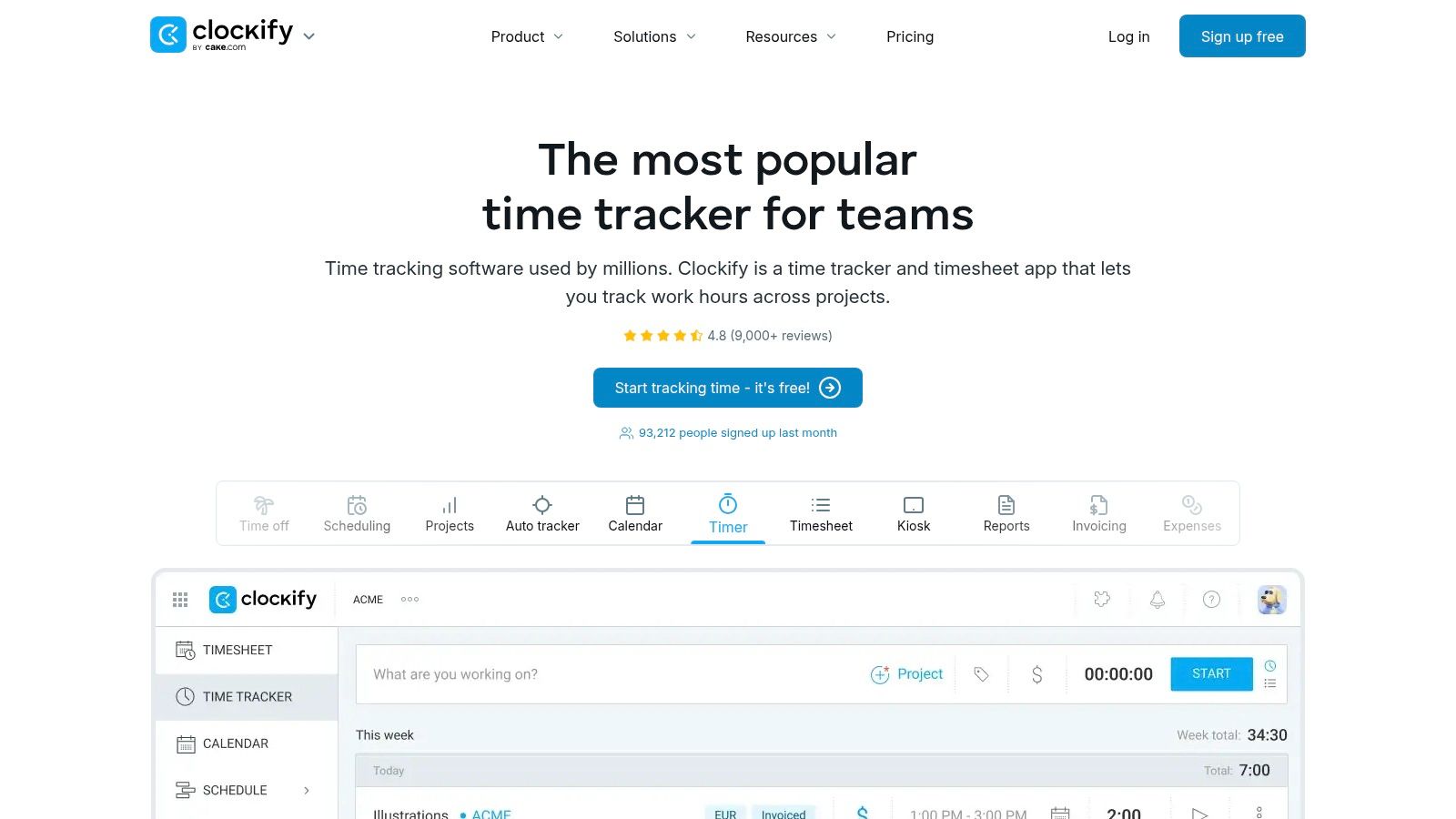
Clockify answers a backward-looking question the planners above don't: where did the hours go? Start and stop a timer, or enter time manually against projects and tasks. Timesheets, a calendar view, and reports on time, costs, and billable hours turn those entries into evidence you can invoice from or plan with.
For a freelancer billing three clients, that evidence ends the Friday reconstruction ritual of guessing hours from sent emails. For an agency, comparing estimates against recorded hours exposes which project types consistently overrun. That feedback loop improves future quotes in a way no to-do list can. Estimate, record, compare, adjust. Repeat monthly and your scheduling gets more honest whether or not you change any other tool.
Apps, browser extensions, and integrations with other work tools reduce the friction of logging, which is where time tracking usually dies. Its pricing page states the free plan supports up to five users, enough for a small team to test whether people will log consistently before paying for administrative, reporting, and forecasting features.
A timer nobody starts produces perfect-looking reports about nothing. Logging discipline matters more than report design.
Be clear about scope. This isn't a complete task-planning or collaboration app. It records effort against work defined elsewhere, and its value collapses if half the team logs and half doesn't. Choose it when billable accuracy, timesheets, or estimate-versus-actual analysis is your dominant problem. If you mainly need to decide what to do tomorrow, start with a planner and add tracking only when the hours themselves become the question.
9. Asana
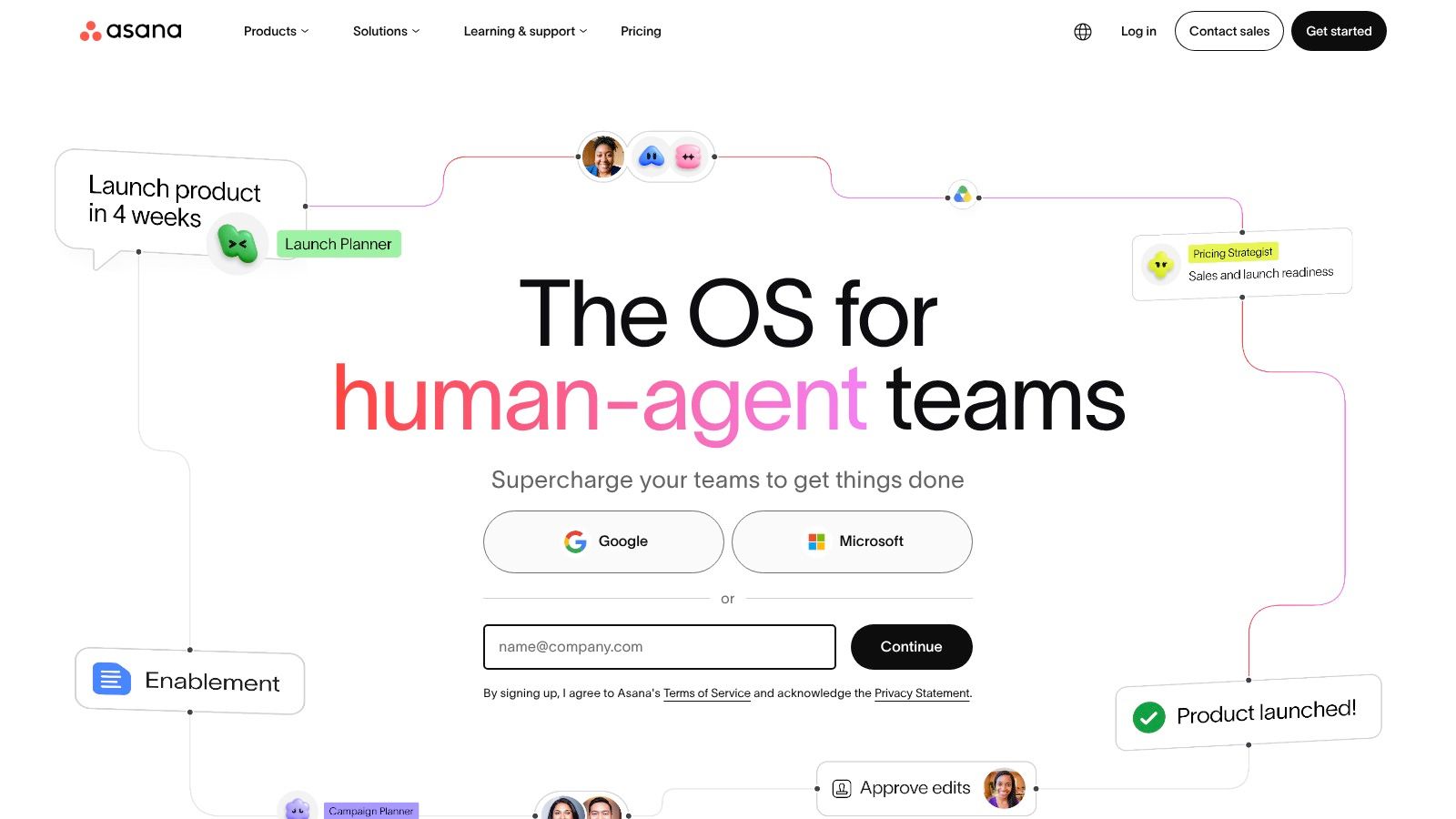
When a team loses time because ownership is unclear across projects, Asana gives tasks named owners and deadlines, with list, board, and calendar views. Comments and recurring tasks keep coordination close to the work. The trade-off is that a team may still need separate apps for chat, documents, and time logging.
Paid tiers add timelines, Gantt views, automations, and reporting. Those tools can help coordinate a marketing launch across design, copy, legal, and engineering, where dependencies matter more than an individual's daily task list. For a wider comparison of product and project management platforms, consider which workflows your team needs to manage in one place.
Time tracking is available on the Advanced tier, so teams that need hours attached to tasks should include that tier when comparing costs. Asana offers a free Personal plan for individuals and very small groups testing the workflow, but it may not suit a growing department.
Paid plans bill per user, and advanced capabilities may require a higher tier or add-ons. That can make the total cost climb as a team grows, especially if separate tools remain necessary for chat, documents, or detailed time logging.
Choose Asana when multi-view project coordination across a larger organization is the priority and per-user pricing fits the budget. Smaller teams that need timeline features only occasionally may prefer a workspace plan with flatter pricing.
10. Forest
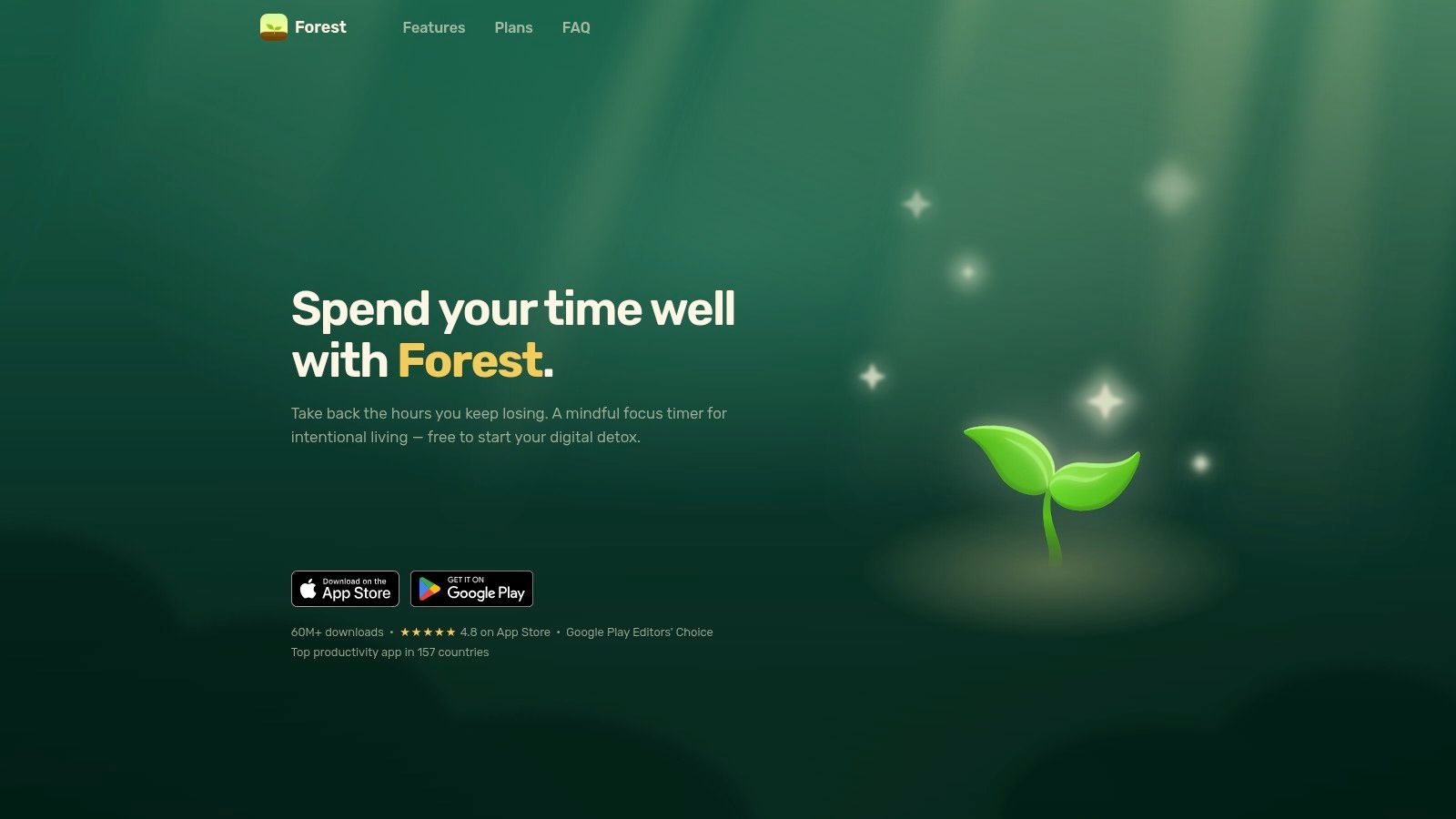
Sometimes you know exactly what to do and when to do it, and you still pick up your phone. Forest targets that moment. You start a focus timer, a virtual tree grows while you stay on task, and leaving for a blocked app or site kills it. Session history, group focus sessions, and optional app and website blocking turn a simple commitment device into a light accountability system.
The stakes aren't trivial. A Frost and Sullivan smartphone productivity study distributed by Samsung reported smartphone users gained almost one additional productive hour and a 34% average efficiency improvement, yet separate workplace findings cited alongside it report smartphone distraction can reduce productivity by 20%. The same device that carries your calendar carries your biggest interruption source. A focus layer addresses the second half of that equation.
The company says core focus features are free, with Plus adding analytics and customization. Premium pricing varies by region and platform, so check your app store rather than assuming a single price. If the tree mechanic feels gimmicky after a week, compare the top Forest replacements for deep work before giving up on focus tooling entirely.
Know what it isn't. It doesn't organize projects, assign owners, or track team deadlines. Work requiring frequent switching between apps, like support triage or live collaboration, fights its whole premise. Pair it with a planner or workspace that decides what deserves a session. Used that way, it's the cheapest fix on this list for wandering attention. Used alone, it times your focus beautifully while your priorities stay unsorted.
10 time management apps at a glance
| App | Best for | Free plan | Standout capability |
|---|---|---|---|
| Tuff | Teams keeping projects and conversations together | Duo plan for 2 people | Combines project management, chat, documents, file sharing, and time tracking with workspace-based pricing |
| Motion | People who want tasks scheduled around deadlines and availability | No free plan stated; paid product | AI adjusts task schedules when priorities or meetings change |
| Sunsama | People who want a guided daily planning routine | No free-forever plan; 14-day trial | Guided planning with calendar timeboxing and integrations |
| Todoist | Personal routines and straightforward task lists | Yes | Fast task capture with priorities, reminders, and recurring tasks |
| TickTick | Personal task planning with routines and focus tools | Yes | Combines tasks, calendar views, habit tracking, and a focus timer |
| Reclaim.ai | People protecting focus time around meetings | Yes, Lite plan for individuals | Automatically schedules focus time, habits, and tasks around calendar events |
| Akiflow | People manually planning tasks alongside their calendar | No free-forever plan | Collects tasks from connected services in a Universal Inbox |
| Clockify | Freelancers and teams tracking billable hours | Yes, up to 5 users | Time tracking with timesheets, project reports, and billable-hour records |
| Asana | Teams organizing projects, owners, and deadlines | Yes, up to 2 users | Multiple project views, with timelines, automations, and reporting on paid plans |
| Forest | People seeking focused work sessions | Core focus features are free | Focus timer with a visual reward loop and app or website blocking options |
Choosing One App and Actually Sticking With It
Start with a one-week audit before you install anything. Write down each moment you lost time and classify it. Did a meeting overwrite your only focus block? Did a task exist nowhere except a chat thread? Did you guess billable hours on Friday? Did you open your phone mid-draft? The category with the most entries is your dominant problem, and it points to exactly one row in the list above. Calendar defense means Reclaim.ai or Motion. Daily overcommitment means Sunsama or Akiflow. Scattered team work means a workspace or Asana. Untracked hours mean Clockify. Wandering attention means Forest alongside whatever plans your work.
Resist stacking in week one. Every additional tool adds another inbox to check and another place where a task can hide. Two tools with overlapping jobs recreate the fragmentation you're trying to escape, and you'll blame the apps when the problem is an undefined boundary between them. Add a second tool only when you can name the specific gap in one sentence, such as, my planner schedules work but can't produce client timesheets.
Run a Two-Week Trial That Can Actually Fail
Run your chosen app alongside your current system for two weeks, but make the new app the place where live work enters. Migrate active projects only. Full archives slow adoption and bury current priorities under history nobody needs this month. When we move teams, an agent takes a few minutes for a few hundred tasks. For thousands, move the projects that are still live and leave the archive where it is. That same restraint works with any tool on this list.
Set your pass criteria before the trial starts. Pick two or three measurable checks tied to your original problem: percentage of tasks captured in one place, focus blocks that survived the week, time entries completed the same day, or hours logged against the right project. If the numbers don't move, the app isn't working for you, however good its reviews are.
Check free-plan limits against your real team size before anyone builds habits around the tool. A plan that covers two people is a fine pilot and a poor foundation for a six-person studio. Count storage too, especially if client files will live in the workspace. On our side, signing up takes a couple of minutes with Google or Apple, every plan includes every feature except AI agents on paid plans, and you can cancel in workspace settings with the plan staying active until the end of the paid period. If a workspace goes over its limit, nothing is deleted, but adding people or files pauses until the owner upgrades or makes room.
That last point generalizes. Switching later is usually easier than feared, because live work is a small, movable subset of everything you've ever stored. The expensive mistake isn't choosing the second-best app. It's staying fragmented for another year while waiting for a perfect one.
If your team's hours disappear into scattered chat, files, and task lists, Tuff puts projects, conversations, documents, and time logging in one workspace for a flat price instead of per-seat fees. Start with the free Duo plan, move one live project in, and log time on the work itself for two weeks to see whether a single workspace ends the hunt.