Tutorial Step by Step for a Project Workflow in 2026
Follow this tutorial step by step to set up a project, turn chat into tasks, check each stage, and fix failures before your team starts.
Your client files are in a shared drive, launch updates are buried in chat, and everyone's logging hours in a different spreadsheet. You need the next launch to run from one place, but moving everything at once would make it harder to tell whether the new workflow works.
Follow this tutorial step by step with a live project, not an empty demonstration. Treat each action as a checkpoint: someone must be able to see the result, hear or read an equivalent confirmation, and recover if the action fails.
Prerequisites and a Quick Orientation
Gather the materials before you start creating projects. Otherwise, you'll interrupt setup to chase an invitation address or find the conversation that explains a task.
- An accessible work inbox. Use an email address you can open immediately, because email sign-up requires clicking the confirmation link we send.
- A recognizable workspace name. Choose the studio, client, or team name people already use.
- Your participants and their roles. Decide who owns the work, who contributes, and who reviews before sending invitations.
- A live project with meaningful tasks. Choose something narrow enough to inspect, but substantial enough to expose dependencies and handoff problems.
- An existing conversation and supporting file. Use these to test whether context and attachments remain available alongside the work.
Start at our sign-up page, or sign in with Google or Apple, then name your workspace. If you use email, finish confirmation before troubleshooting access elsewhere.
Orient yourself before importing work
Choose the option to explore a sample project. Locate its tasks, chat, documents, and announcements without changing anything, then return to your own project.
Review workspace pricing and plans before inviting the wider team so capacity and storage fit your intended rollout. Don't turn a workflow test into a subscription comparison midway through setup.
Define success first: Your test project is ready when every checkpoint passes and a teammate can find their assignment and supporting material without asking you.
Keep a short working log with the stage, expected result, observed result, and recovery action. Record what happened, not just that someone clicked the expected control.
How to Set Up Your Workspace and Project
Build the project around decisions your team has already made. An empty board is easy to create; a board that different people interpret consistently takes more care.
Establish scope and ownership
Name the workspace after the client or team, using a name that makes sense outside the application. This prevents unfamiliar invitation and notification text from being dismissed or confused with another workspace.
Invite members by email and confirm each person's role before adding sensitive work. This prevents a later access problem from being mistaken for a missing project or broken invitation.
Create a project for a specific client engagement, launch, or sprint, with a name such as Acorn Spring Launch rather than a month alone. Narrow scope prevents unrelated tasks from crowding the board, while a descriptive name makes the project easier to retrieve later.
Agree how the work will move
Agree on list meanings before anyone moves a task, using Backlog for unscheduled ideas, Todo for committed work, Doing for active work, and Done for accepted completion. A task's list is its status, so changing those meanings during delivery makes reviews inconsistent.
Add the kickoff document, reference links, and main brief inside the project, with descriptive titles rather than filenames that only the uploader understands. Keeping these materials beside the work prevents contributors from relying on an outdated copy elsewhere.
Post a welcome announcement naming the owner, deadline, and blocker-reporting route. This prevents each contributor from inventing a different escalation process when a dependency stalls.
A new project starts with five empty lists. Treat that as a starting layout, not a requirement to invent another status: give every list you use a distinct purpose and leave no ambiguous destination in the agreed workflow.
Test the project as a participant
Ask an invited colleague to open the project from their own account and locate the brief, working lists, and welcome announcement. Don't guide their cursor or supply search terms unless you're recording that intervention as a failure.
For keyboard use, inspect the focus indicator as you move between controls. For screen-reader use, confirm that the project title and document names are readable, not merely recognizable by position or icon.
A project isn't ready because its creator understands it. It's ready when the next person can navigate it without a private explanation.
If your colleague can't open the project, resolve access before adding more work. If they can open it but can't identify the authoritative brief, fix the document naming and announcement rather than sending a separate explanatory message.
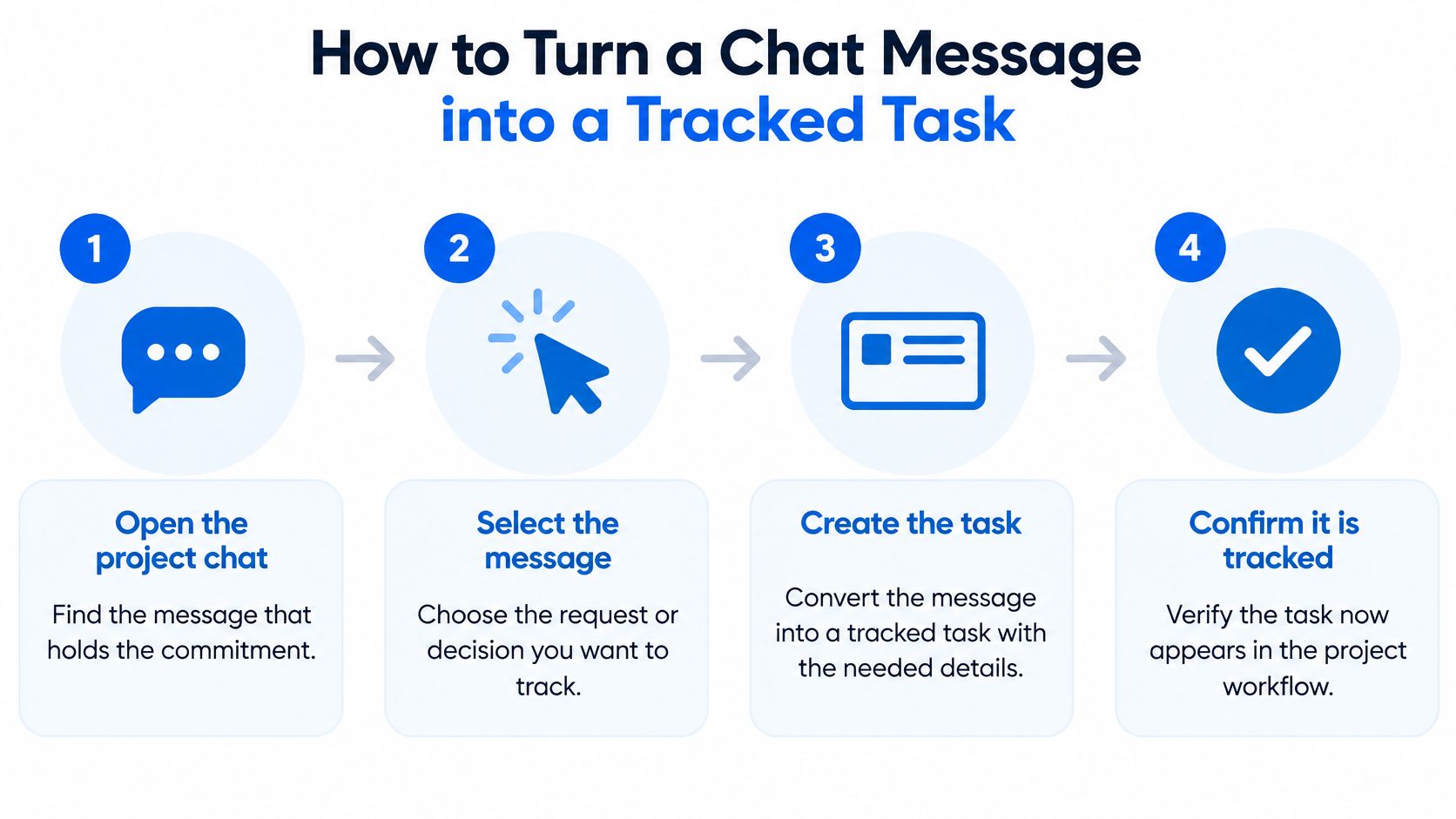
How to Turn a Chat Message into a Tracked Task
Say the project chat contains a request to send the revised launch deck by Friday. The commitment is clear, but nobody owns a tracked task yet.
Start with a complete example, then remove guidance as the reader gains confidence. A meta-analysis of worked-example instruction found improved post-test performance with lower perceived mental effort, with faded solution steps producing the strongest benefit among the examined design features.
Complete the first conversion
Locate the commitment. Open the project chat and select the message requesting the revised deck. Success check: Read the selected message and its surrounding replies; if they don't establish a deliverable, keep looking rather than converting a vague discussion.
Turn the message into a task. Use the message's task-conversion action and give the task an action-led title, such as Send revised launch deck. Success check: Open the task and verify that its source-message context is available; stop if you can't explain why the task exists.
Assign the decision fields. For this example, assign the deck owner, set the actual calendar date corresponding to Friday, and choose the agreed priority. Success check: Read back the assignee, date, and priority from the saved task rather than assuming your selections persisted.
Add dependencies and placement. Add a subtask for obtaining the approved client logo, then place the task in the appropriate project list and sprint if your team uses one. Success check: Confirm that the dependency appears inside the task and that the task occupies the intended workflow position.
Add the supporting file. Upload the working deck inside the project and identify it clearly in the task. Success check: Open the attachment from the project; a filename alone doesn't prove the file is available.
Reconnect the discussion. Reply in the original thread using # to link the task. Success check: Follow the link back to the correct task and confirm that its title is readable with your normal input and assistive tools.
Don't continue through an uninterrupted sequence after a failed check. You'll lose the point where the saved state stopped matching your intention.
Repeat with less guidance
For a partly completed example, convert a request to review homepage copy. Set the reviewer and supporting document yourself, but ask your colleague to choose the due date based on the publication dependency.
Stage result: The task appears on the board, retains its source context, and has a deadline the reviewer can explain. If the date is a guess, resolve the dependency before proceeding.
Next, ask the colleague to convert a different commitment independently. Experienced users can skip basic navigation and concentrate on exceptions, especially messages that should remain discussions because nobody has agreed to deliver anything.
For software teams, SpecStory, Inc.’s resource on how to turn team discussions into code with SpecStory offers a related conversation-to-delivery perspective. If you're considering automation, use our guide to AI for project management to plan where human decisions should remain explicit.
Checkpoints That Confirm Each Step Worked
Expected result and stop signal for each stage
| Stage | Expected result | Quick check | Stop if |
|---|---|---|---|
| Workspace and invites | Members appear with the roles you set | Ask a member to open the project | A member cannot see the project |
| Project setup | Agreed lists and welcome announcement are visible | Open the project as a new member | Lists differ between accounts |
| Message to task | Task keeps the source message context | Open the task and read its origin | Context is missing or assignee is blank |
| Subtasks and files | Dependencies and attachments sit inside the project | Search the project for the file | The file exists only in another app |
| Time logging | Hours are recorded against the correct task | Check team statistics for the day | Hours appear with no task attached |
| Handoff | Reviewer sees the task in My tasks, soonest first | Reviewer confirms from their own account | Reviewer does not see the task |
Run these checks yourself, then have a teammate repeat them without coaching. Your familiarity with the setup can hide unclear labels and access assumptions.
Verify evidence, not confidence
AI-generated instructions need independent confirmation. Microsoft Research's guidance on appropriate reliance describes people's tendency to trust AI outputs without verification and recommends making correctness and completeness easier to check.
Record the observed evidence precisely: the reviewer opened the assigned task from their account, or the attachment opened from the project. A completed instruction list isn't evidence that permissions, device behavior, or regional date settings matched your assumptions.
Consequential actions deserve a separate review. Moving a task between lists is different from inviting an external client or announcing a deadline. Confirm the recipient, audience, and date before completing actions that create expectations or expose information.
Use a second device to check uncertain results, but don't treat your own account on another screen as proof that someone else has access. For rollout planning, put checkpoint ownership and recovery responsibilities into your project implementation plan.
Pass before proceeding: Mark a stage complete only when the intended participant can verify its result.
Keep failed checks in the log with the exact stage and symptom. That gives you a specific diagnosis to pursue instead of restarting the entire workflow.
Fixing Problems When a Step Fails
A missing attachment after a move is a useful place to start diagnosis: the task can look complete while the material needed to execute it is absent. Attachments may not come across in a move, so download the original file and add it manually.
Symptoms, likely causes and fixes
| Symptom | Likely cause | Fix |
|---|---|---|
| Member cannot see the project | Not invited to the project or given the wrong role | Re-invite the member with the intended role |
| Confirmation email never arrives | Email caught by a spam filter, or confirmation remains incomplete | Check spam before requesting another confirmation email |
| File missing after import | Attachment wasn't transferred during the move | Upload a downloaded copy of the original file |
| Task has no source context | Wrong message selected or context edited away | Recreate the task with the original message quoted in its description |
| Duplicate tasks after a move | The same move request was run twice | Remove confirmed duplicates after identifying the authoritative copies |
| Screen differs from the tutorial | Different device, browser, or window size | Use keyboard navigation and ⌘K to find the control by name |
| Control has no readable name | The interface doesn't expose an identifiable label | Report the control to the workspace owner |
Choose repair or restart deliberately
Repair a local problem when the correct project, task, and source material are identifiable. Restart from the last confirmed state when you can't establish what was saved or which copy is authoritative.
Don't repeat a move to test whether it worked. Running the same move request twice makes everything twice; inspect the destination before issuing another request. Delete duplicates only after checking that they don't contain unique comments or completed work.
If an agent participated, separate a permission problem from an unclear instruction before changing either. Cyndra's guide to troubleshooting AI employee issues is a useful companion for diagnosing an agent-assisted workflow rather than repeatedly issuing the same request.
Recover without relying on sight
Use Tab and Shift+Tab to inspect reachable controls, and ⌘K to find a destination by name. When focus lands somewhere unexpected, read the focused control's name and role before activating it; don't assume it's the button shown in the tutorial.
Accessibility work on instruction design for blind users supports atomic instructions, orientation cues, explicit confirmation, and recovery paths. Require readable confirmation of the task title and state, not color or card position alone.
Record the tested recovery key or navigation route and the person responsible for unresolved access problems. If an instruction repeatedly fails, rewrite that instruction and add its symptom to the team's fix table instead of asking colleagues to retry harder.
Run Your First Workflow in Tuff Today
Run a live workflow before rolling the method out across the team. Start by exploring the sample project so participants can learn the layout without changing client work; when it's no longer useful, remove it using Delete sample in the grey band.
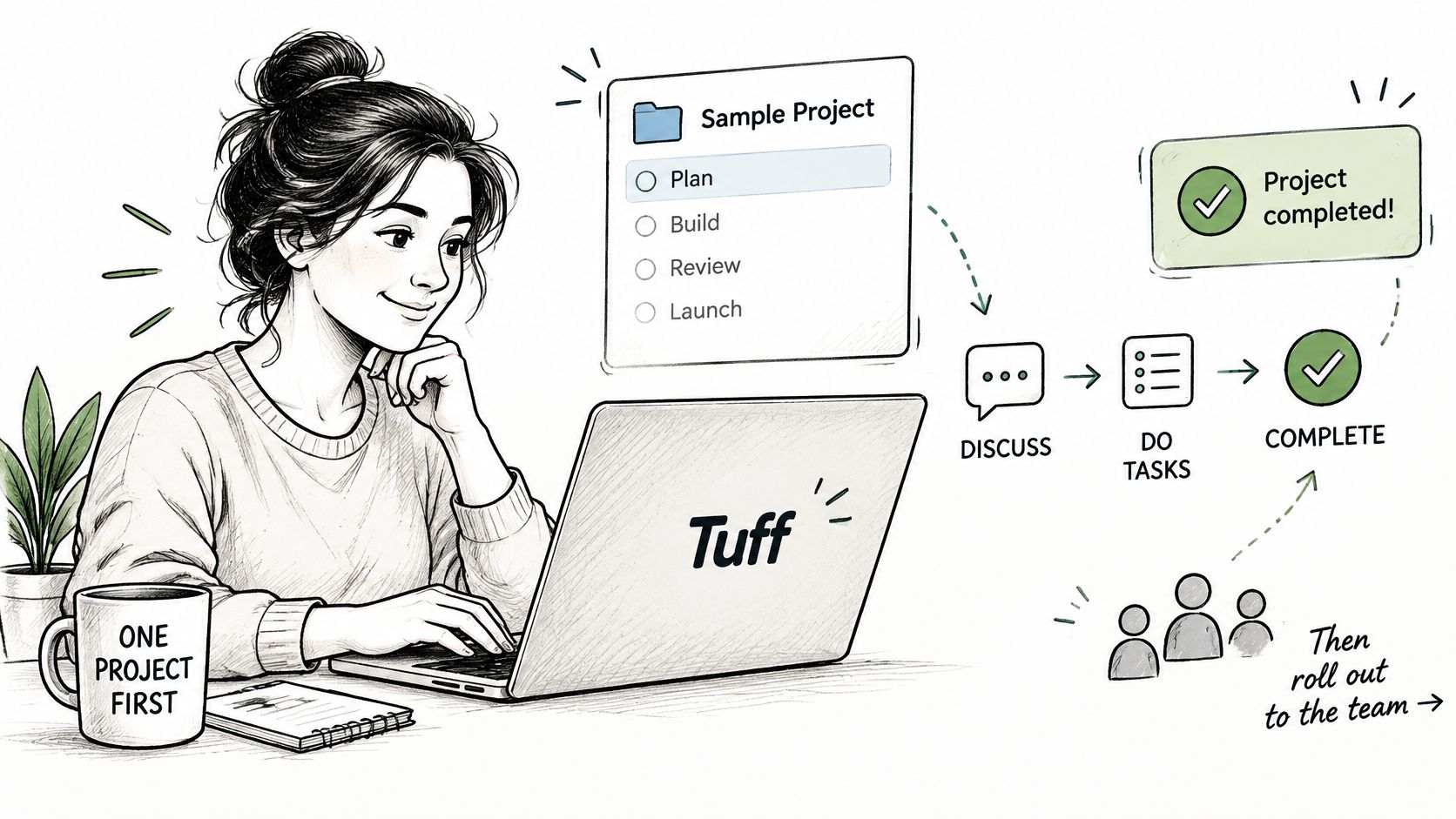
Run a small, observable trial
Choose a current deliverable and include its owner, a contributor, and its reviewer. Time each stage from setup through final handoff, recording help requests separately from independent completion.
- If the run fails: Repair the matching symptom, repeat the affected stage, and log the changed instruction.
- If the run passes: Record the result in the welcome announcement and use the measured stage times to plan the next project.
- If automation is next: First assess your organization's AI readiness with Ekipa's framework rather than adding an agent to an unsettled process.
Keep the initial trial manual enough that everyone understands the authorization and handoff decisions. Automation shouldn't make an uncertain workflow harder to inspect.
Schedule a dry run with your project owner and reviewer this week. The pass test is simple: every checkpoint succeeds independently, and nobody needs to ask where their task or supporting file lives.
Tuff brings project tasks, chat, documents, files, and time tracking into a shared workspace so you can test this workflow without scattering its evidence across applications. Visit Tuff, explore the sample project, and take a real commitment from conversation to verified handoff.