
Files
Documents you write together, images, uploads and links, with versions and a 30-day bin.
A project’s Files has four tabs, each with its own address, so you can send a link to one:
- Docs: documents written in Tuff, with headings, lists, tables, code and pictures.
- Images: pictures, large, three to a row on a wide window. Press one to see it full size.
- Uploads: other files, up to 50 MB. PDFs and videos open in place.
- Links: addresses kept with the project, with the place’s own icon, like Figma or Google Docs. Paste a link anywhere on Files to add it.
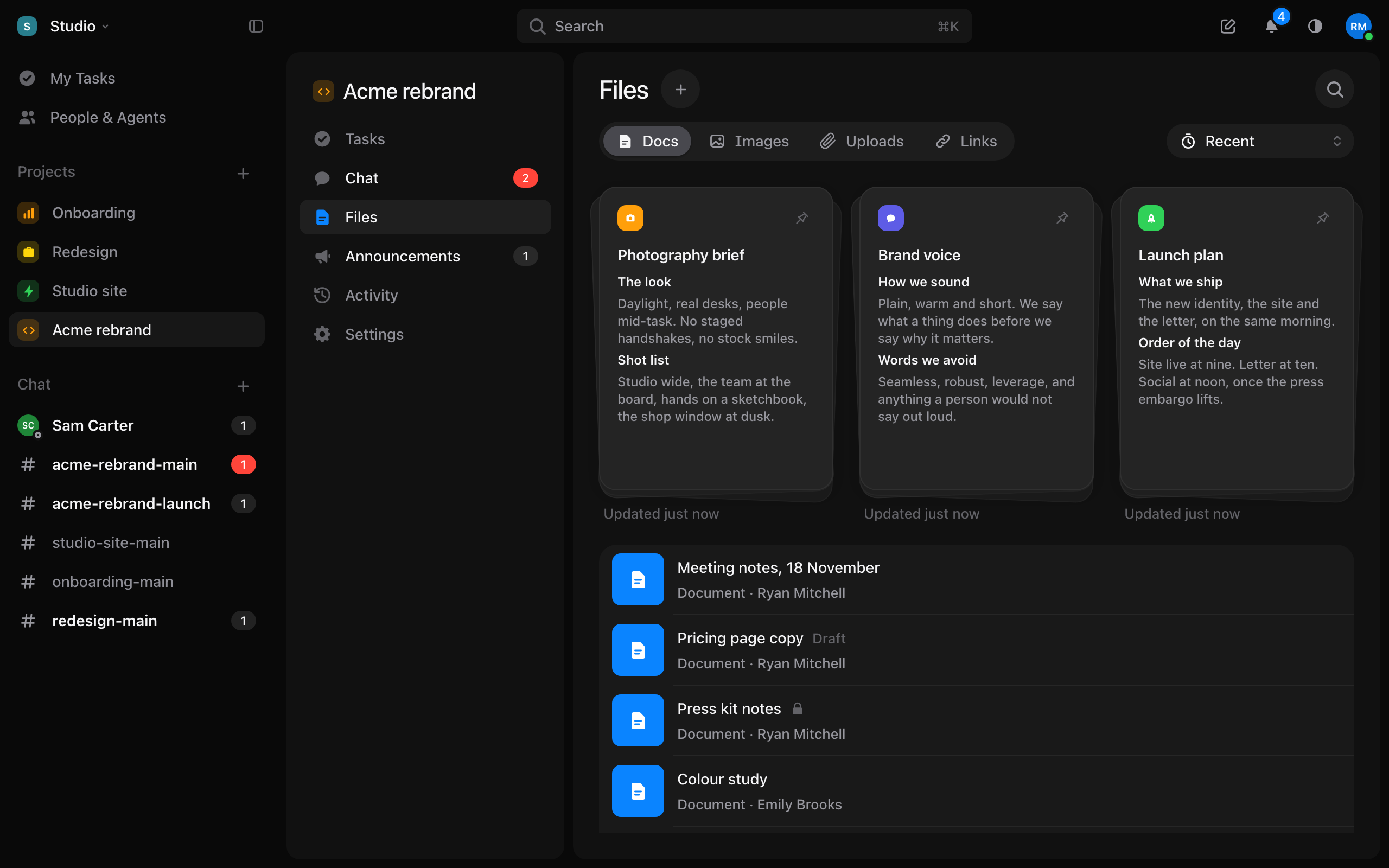
Press the + beside Files for New document, Upload file or Add link. You can also drop files anywhere on the page.
Recent, My documents, Shared with me
The menu at the end of the tabs narrows the list. Recent shows everyone’s, My documents what you added, and Shared with me what others added. The list is in the order things last changed. Files remembers your choice in this browser.
Pinned documents
Press the pin on a document’s row to keep it at the top. A pinned document shows as a page with a preview of its first lines. A pinned upload or link stays a row, first in the list.
A document’s icon and colour
Press the icon above a document’s name to choose another icon and colour. Default puts the usual look back. The icon shows in the list, on the pinned page and in search.
Templates
The + menu has Templates: a Brief, Meeting notes, a Spec and a Client report, then any document someone saved as a template. To make one, turn on Save as template in a document’s ⋯ menu. People see it in every project, as long as they can read the document.
Comments
Comment on a document, an upload or a link from the comments under it. To comment on some words, select them and press Comment on the bar that appears. The words are highlighted, and pressing them opens the thread. Press Resolve when it’s settled: the thread folds into one line, and Reopen opens it again.
Turn a line into a task
Select one or more lines and press Make a task on the same bar. Each line becomes a task in the project, and the line is replaced by the task. Tick it to complete the task, or press it to open it. The task links back to the document.
Version history
Choose Version history in a document’s ⋯ menu. It lists earlier versions, newest first, with when each was saved and who wrote in it. Choose one to read it. Restore this version puts it back, and the version it replaces stays in the history.
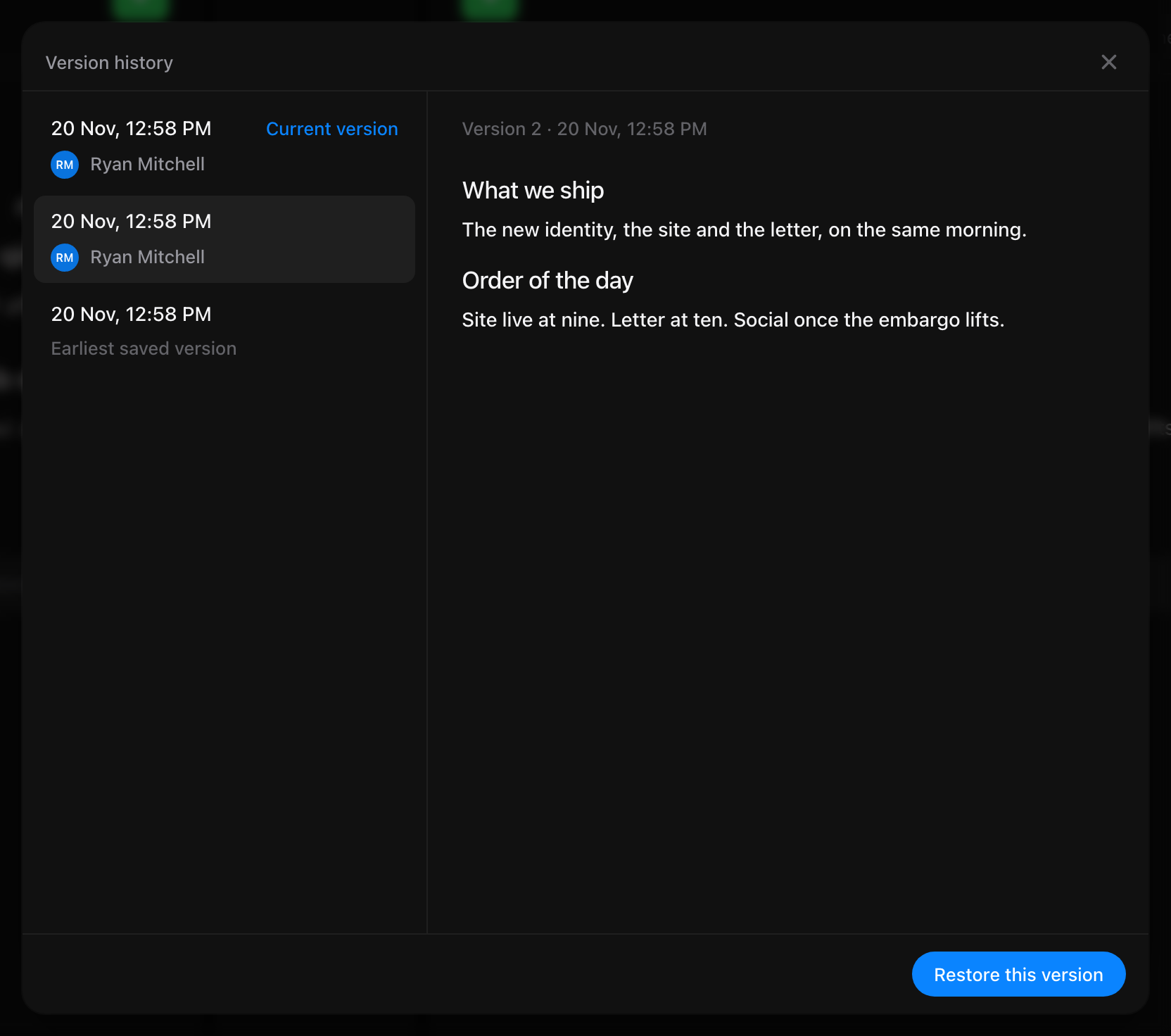
Tuff keeps every version from the last day, one a day for 30 days, and one a week after that.
Export, share and follow
A document’s ⋯ menu has Copy link, Export PDF and Share to web, which makes a public link anyone can read. Subscribe, beside the menu, tells you about new comments. Who can see a document is up to its author: Who sees a document.
Recently Deleted
Delete a document, upload or link from its ⋯ menu. Undo brings it back right away. After that, it waits in Recently Deleted for 30 days. It’s the last entry in the menu with Recent, My documents and Shared with me.
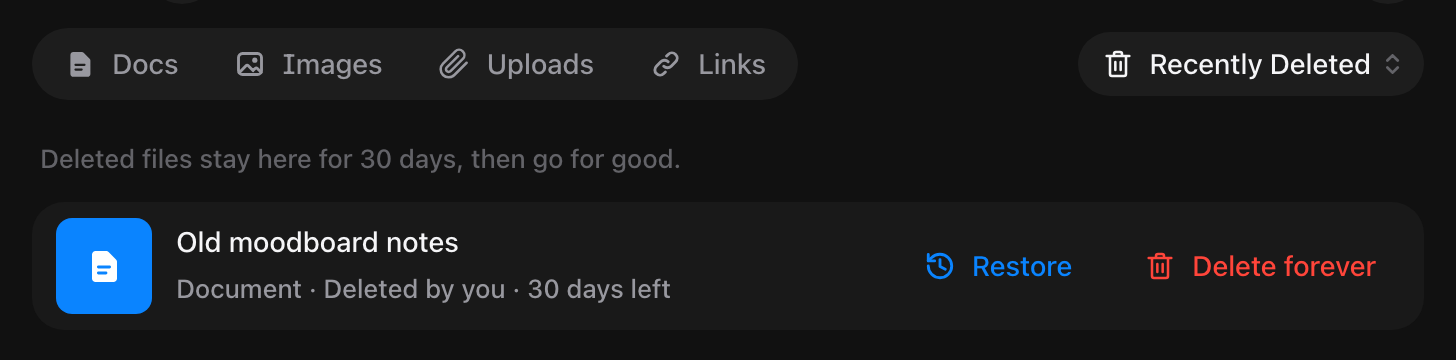
- Each row says who deleted it and how many days are left.
- Restore puts it back where it was, with its comments.
- Delete forever removes it now, after you confirm. This can’t be undone.
You can delete what you added. Deleting someone else’s needs the Delete tasks right on the project. Recently Deleted lists what you deleted, and everyone’s if you have that right.
Announcements are for news or a decision everyone on the project should see, apart from the everyday chat.
Still stuck? Write to [email protected]. Tuff not loading? See status.usetuff.com.